Certifications: your credential radar
Every restoration crew runs on a stack of credentials: IICRC designations your techs hold, the firm-level licenses your business carries, and the certifications your subcontractors carry on your be…
On this page
- What the Certifications section shows
- Where to find it
- How this section onboards you
- The three kinds of certifications it tracks
- The home view, top to bottom
- The hero panel
- Apps
- Take Action
- Explore
- Most recent
- The four-tab detail deck
- Opening a single certification
- Getting certifications into Verinode
- Best-practice example
- Data sources
What the Certifications section shows
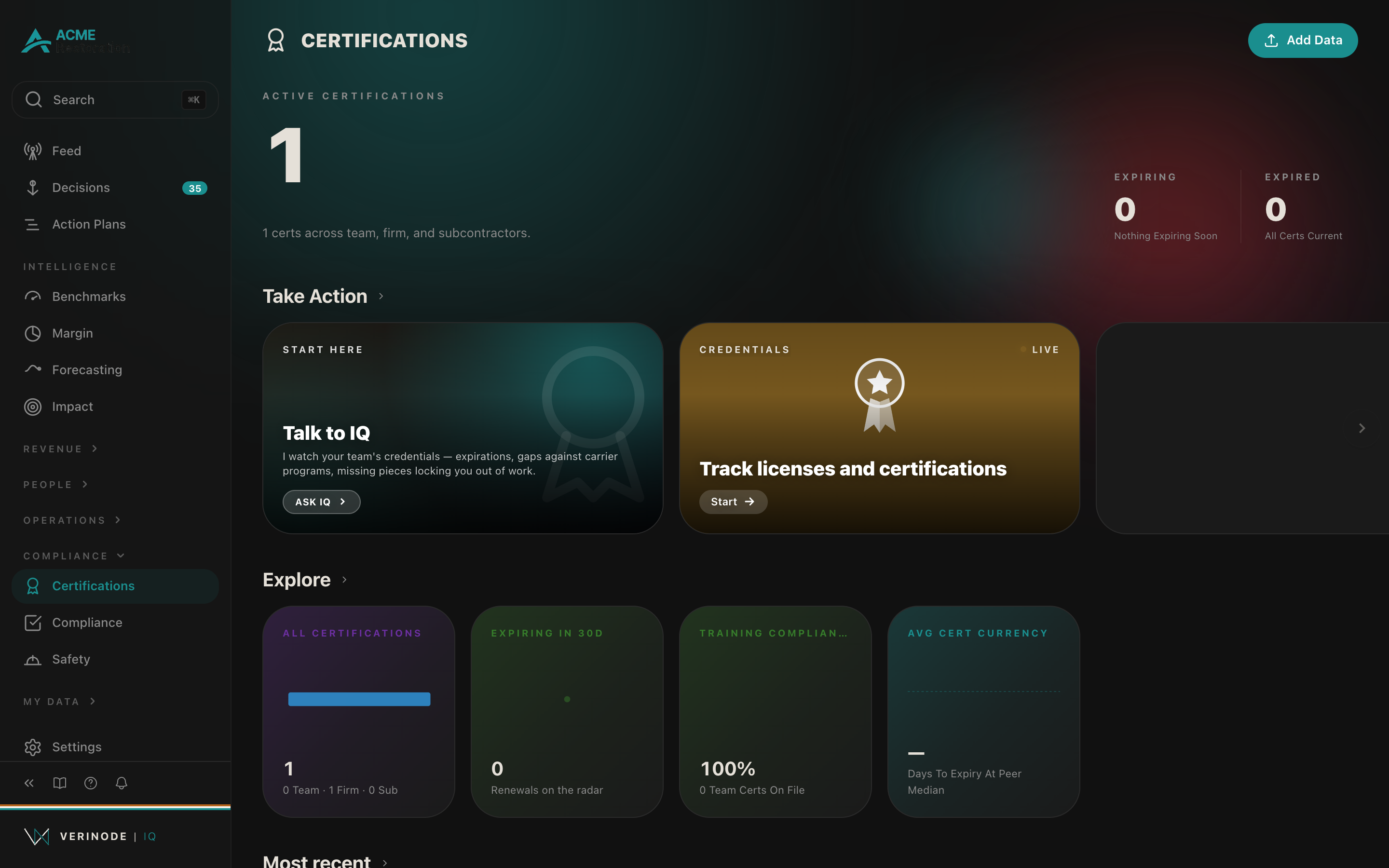
Every restoration crew runs on a stack of credentials: IICRC designations your techs hold, the firm-level licenses your business carries, and the certifications your subcontractors carry on your behalf. Any one of them can lapse quietly, and the first sign is usually a blocked job or a failed carrier audit. Certifications is where Verinode reads everything it has ingested about those credentials and lays out what is current, what is closing in on its renewal window, and what has already expired, before it becomes a problem on a job site.
Verinode does not renew a cert for you or decide when to book a class. It reads the cert PDFs, photos, and emails you send in, tracks the expiration and continuing-education clock on each one, and surfaces the renewal, the coverage gap, or the carrier-program exposure as a decision. You choose what to do with it.
Where to find it
Open Certifications from the sidebar at iq.verinode.ai/certifications.
Certifications is a Premier-tier feature. On the Contributor and Executive tiers the page still renders in full, but the credential radar underneath is wrapped in a preview. If you already have cert records on file, the preview reads: "Verinode is tracking N certification records for you. Upgrade to Premier to see renewal calendar, carrier-program eligibility, and credential gaps." Before any records exist, it reads: "Certifications + the credential radar, including carrier-program eligibility, unlock at Premier."
If Certifications has never been switched on for your operator, the page shows a "Switch on Certifications" gate instead of the home view, described as "Every tech's certifications, coverage gaps, and expirations ahead." One click switches it on and the section loads in place, no separate page load.
How this section onboards you
Your first visit to Certifications opens with a short intro screen that explains what the section does and what feeds it, and after that a persistent Get IQ Up To Speed row sits near the top of the web home, tracking the steps that bring the section fully alive (your firm's licenses and policies with their expiry dates, then which of your people hold which certifications) and checking each one off as the data lands. It stays until the section is fed, so you always know where you stand and what to add next. On the mobile app, a capability-map tile in the Take Action row plays a similar role, showing what the section can do and what each input unlocks; that tile is mobile-only now. See how section onboarding works for the pattern across the platform.
The three kinds of certifications it tracks
Certifications is polymorphic: it pulls three different record types into one list, each with its own detail view and its own renewal logic.
Team certifications. Credentials an individual technician holds: IICRC designations like WRT (Water Damage Restoration Technician), ASD (Applied Structural Drying), AMRT (Applied Microbial Remediation Technician), FSRT (Fire and Smoke Restoration Technician), plus safety credentials like OSHA 10/30, EPA RRP, and BBP (Bloodborne Pathogens). These carry a cert number, issue and expiration dates, a status, and continuing-education-credit (CEC) tracking against whatever the issuing body requires to keep it current.
Firm certifications. Credentials the business itself holds, not any one technician, such as an IICRC Firm certification. These carry an annual cost line alongside the issue and expiration dates, because a firm cert is a recurring line in your overhead the same way any other license fee is (see Understanding your margin for how cost lines like this roll up into net income).
Subcontractor certifications. Certs you track for the subs you use, most often a certificate of insurance or a trade credential. These carry a verified flag: either the sub uploaded their own document through a Verinode-hosted verification link, or the record is self-reported and unverified. Sub certs also carry the sub's name, email, and phone so you can chase a renewal without leaving the record.
The home view, top to bottom
The hero panel
At the top, the eyebrow reads Active Certifications and the headline number is your total certification count minus anything already expired. Below it, when you have at least one enrolled carrier program, a pill shows the percentage of enrolled programs where every required cert is currently held, labeled "X% Programs Covered." The pill's color follows the same three-band read used across the platform: 90% or higher reads Expand-green, 70 to 89% reads Maintain-yellow, and anything under 70% reads Analyse-red.
The subtext under the headline adapts to your data: with no certs on file it reads "Add Data, certs land here as photos, screenshots, and uploads come in"; with certs expiring inside 30 days it reads "N certs expiring in the next 30 days"; otherwise it reads "N certs across team, firm, and subcontractors."
Two secondary stats sit beside the headline:
- Expiring, the count due inside 30 days, subtitled "Within 30 Days" when there are any, or "Nothing Expiring Soon" when there are none.
- Expired, the count already past its expiration date, subtitled "Past Expiry" or, when clear, "All Certs Current."
Apps
Between the hero and Take Action sits the Apps row, the section's tools. It leads with Certification Review, a "Live" tile headlined "Which credentials are expiring or missing, and the deadlines": clicking Start runs a full review that translates your certifications, licenses, and the requirements that apply to your work into plain action items, what is expiring, what is missing, who enforces it, and the deadline. Next to it sit the Talk to IQ activation tile (which opens the agent panel seeded for certifications, and retires once you have engaged) and the Credentials launch tile ("Track licenses and certifications"), which opens the firm-license deck where you add and watch firm-level credentials.
Take Action
This row is the section's decision feed, and it carries only decisions. When Verinode has open findings, they render as decision tiles, the first as a larger hero tile and the rest as standard tiles, each carrying the certification's name as its entity label. When there is nothing open yet, the row falls back to one of three empty states depending on where you stand:
- No cert records at all. The card reads "Capture your team's credentials" with the body "Three quick moves and your first cert decisions surface within minutes," followed by three concrete steps: upload IICRC and carrier-program cert PDFs (any cert with a name and expiration date, e.g. WRT, ASD, AMRT, FSRT); snap a photo of a cert card or training certificate (works for OSHA 10/30, EPA RRP, BBP, and anything else); or forward IICRC renewal and CEC-completion emails so renewals never slip past the radar. The footer notes that the renewal calendar, single-point-of-failure warnings, and carrier-program unlocks surface as certs land.
- Records exist and every past finding has been resolved. The card reads "All clear on your certifications," naming how many signals you've worked through, and notes that new renewals and program-gate changes will surface as the detector finds them.
- Records exist but the detector hasn't produced a finding yet. The card reads "Still learning your cert stack," noting that top decisions will appear as the detector analyzes renewals, team depth, and program-gate eligibility.
Explore
Four tiles, each opening a different tab of the detail deck:
- All Certifications: the total record count, subtitled with the team/firm/sub breakdown ("N team · N firm · N sub"), with a three-color proportion bar showing the same split visually. Opens the All Certifications tab.
- Expiring in 30d: the count due inside 30 days. If anything has already expired, the subtitle reads "+N already expired"; otherwise it reads "Renewals on the radar." A dot grid marks how many of your total records are flagged, red if any are already expired, amber if only upcoming. Opens All Certifications focused on renewals.
- Training Compliance: the percentage of team certs currently active or expiring-soon (as opposed to lapsed), subtitled with how many team certs are on file. A gauge reads green at 90% and above, amber between 70 and 89%, and red below 70%, and shows how you compare against your peer group or, before enough peer data exists, an industry research figure. Opens the Team Depth tab.
- Avg Cert Currency: the peer-median number of days to expiry across the peer group's certifications, so you can see whether the market keeps certs fresher than a bare pass/fail read would suggest. Opens the Benchmarks tab.
Note
Carrier program eligibility used to have its own Explore tile here. It now lives on the Clients home, next to the rest of your carrier relationships, because program eligibility is a carrier decision, not a credential-lifecycle one. The cert records that unlock or lose a program still show that program by name inside their detail view.
Most recent
Up to 20 certification tiles, sorted first by severity (critical, then warning, then informational) and second by how soon each is due. Each tile shows the kind ("Team Cert," "Firm Cert," or "Sub Cert"), the title (for example "Jane Doe, IICRC WRT" or "Acme Fire, IICRC Firm"), a status dot colored by severity, the status line itself (for example "Expires in 12d" or "Expired 6d ago"), and, when the due date is inside 60 days, a small badge showing the day count or "Nd overdue." Click any tile to open that record's detail view directly.
With nothing on file yet, this row reads: "Certifications will appear as you forward cert PDFs or capture credential photos."
The four-tab detail deck
Clicking any Explore tile, a decision tile, or a Most Recent tile opens a full-screen deck with four tabs.
- 1Findings: every open decision scoped to certifications, the same feed that seeds the Take Action row, but browsable in full and drillable one at a time.
- 2All Certifications: every record grouped by kind (Team Cert, Firm Cert, Sub Cert), each group headed by its count, sorted within the group, and colored by severity. With no records at all, it reads "No certifications on file yet. Upload a cert PDF via Add Data."
- 3Team Depth: a matrix of every team cert slug against who holds it: a Cert column, a Holders column (the count of active team members currently holding that cert, flagged "(SPoF)" in Ember Red when only one person holds it), and a Members column listing their names. This is where a single-point-of-failure gap on a service-critical cert becomes visible at a glance. Empty state: "Add team certifications to see depth coverage."
- 4Benchmarks: Average cert currency (days to expiry) and Training compliance, each shown three ways: a Peer figure, a Research figure sourced from published industry data, and a Scope label for which cohort the peer figure was drawn from. The Peer column only carries a live number once enough operators at your size have contributed data to protect anonymity; until then it falls back to the Research figure, and a footnote explains that contributing your own data is what tightens the cohort over time.
Opening a single certification
Every record, whichever kind, opens the same shape of detail view: a hero with a stance badge, four kind-specific stats, and a set of sections underneath.
The stance badge reads one of five states, each with its own accent color and its own "what to do, what you gain, what happens if you don't" framing: Current (green, nothing needs attention), Expiring (yellow, the renewal window is open, generally inside 60 to 90 days depending on kind), Exposed (red, inside 14 days for team certs or 30 days for firm and sub certs, or a team cert held by only one person on an active service line), Expired (red, already past its date and typically work-blocking), and Missing (red, a program-required cert the operator doesn't hold at all).
The stat row varies by kind:
- Team: Expires (with a "Nd left" or "Nd overdue" delta), Holders (the count of active team members with this cert, flagged when it's the only one), Programs (how many carrier programs this cert unlocks), Issued.
- Firm: Expires, Programs (how many this firm cert unlocks or gates), Annual Cost, Issued.
- Sub: Expires, Verified (Yes or No), Contact (email or phone, whichever is on file), Cert (the slug, formatted for reading).
Below the hero, the Details section repeats the record's fields in full: for a team cert, the member, the certification name, the cert number if any, the training vendor if one is on file, and the CEC tally against what's required. For a firm cert, the certification name, cert number, annual cost, and both dates. For a sub cert, the subcontractor's name, the certification, the cert number, expiration, whether it's verified, and contact details.
Renewal CTA. When a team or firm cert is inside its renewal window or already expired, a banner appears above the fold: amber for "Renewal due," rose for "Expired." If a training vendor is already on file for that cert, the button reads "Renew [cert] with [vendor]" and hands off to that vendor's page under [Vendors]. If no vendor is set, it reads "Pick a training vendor for [cert]" and opens the vendor picker filtered to training providers.
CEC History (team certs only). A running log of every continuing-education class logged toward this cert, whether it arrived automatically (a forwarded certificate email or an uploaded screenshot, parsed by the ingestion pipeline for credits, provider, and cost) or was logged manually. A progress bar compares credits earned against credits required when both are known. With nothing logged yet, it reads: "No CEC classes logged yet. Forward the certificate email or upload a screenshot, the ingestion pipeline parses credits, provider, and cost. Or use + Add CEC below for manual entries." The manual form takes credits, a completion date, and optionally a provider and cost.
Programs This Cert Unlocks / Programs This Firm Cert Gates. When this cert feeds eligibility for one or more enrolled carrier programs, they're listed by name with their requirement level (required or preferred).
Verification (sub certs only). If the sub has no email on file, this section just prompts you to add one. Otherwise it offers a "Send verification request" button: a one-click, no-account upload link goes to the sub by email, and once they upload, the record flips to Verified and the section reads "Document on file. The sub uploaded their cert via the verification link," with an option to re-send the link if they need to replace the document.
Peer Position. Shows what share of peer operators at your size hold this cert, once enough peer data exists to support the comparison. Before that, it reads: "Contributions unlock the comparison. Peer operators haven't yet shared enough data to benchmark this cert at your size." This is the same benchmarking discipline used across the platform, see How benchmarks work and Reading a benchmark for the mechanics.
Open Tips and Findings. Two more sections appear only when there's something to show: Open Tips surfaces any standing guidance tied to this specific cert, and Findings lists any decisions linked to it, each with its monthly cost of inaction when one applies. Both carry a badge with their count and disappear entirely when empty, so an unremarkable, fully current cert opens to a short, clean page. Findings that surface here work the same way as everywhere else on the platform, see The decision workspace.
Getting certifications into Verinode
There's no manual-only path here by default, data is meant to flow in the way everything else does on Verinode: forward a renewal or CEC-completion email, upload a cert PDF, or snap a photo of a physical cert card through Add Data at the top of the page. Team, firm, and sub certs all extract the same way once forwarded or uploaded. A separate "Add a credential" form exists specifically for firm-level licenses when you'd rather enter one directly: pick the credential from a catalog, add a cert number if you have one, and set the expiration, Verinode watches it and flags the renewal before it lapses.
Heads up
Sub cert verification only closes the loop when the sub actually uploads through the link. A record you mark yourself without a document on file stays "Self-reported," which is honest but carries none of the audit weight a verified document does. Send the request rather than typing the number in from a text message.
Best-practice example
Say your hero panel reads 3 expiring and 1 expired, with Programs Covered sitting at 78%, Maintain-yellow. Open Team Depth first: it flags your only WRT holder's cert as SPoF, expiring in 40 days. That's the one to book first, since a lapse there stops water-mitigation dispatch entirely, not just a single technician's paperwork. Next, open the expired record: it's a firm cert gating a carrier program you're actively enrolled in, so that program has already gone dark. Renewing it is the fastest way to move Programs Covered back toward 90% and out of the yellow band. The remaining two expiring certs carry no service-line or program exposure, they can wait for the next Explore pass.
Data sources
Data sources
- 1.Team member certifications (`team_member_certifications`). Your business.
- 2.Firm and license certifications (`business_certifications`). Your business.
- 3.Subcontractor certifications (`subcontractor_certifications`). Your business.
- 4.Carrier-program requirements catalog. Verinode reference data.
- 5.Peer certification benchmarks. Verinode intelligence layer (anonymized).