The job profile
The job profile is what opens when you click a single job anywhere in Verinode. It is the full read on one claim: where the money stands, what has happened to it, and how it has moved from assignme…
On this page
What the job profile is
The job profile is what opens when you click a single job anywhere in Verinode. It is the full read on one claim: where the money stands, what has happened to it, and how it has moved from assignment to payment. The list view answers "which jobs need me?" The profile answers "what is going on with this one, and what should I do about it?"
Everything on the profile is assembled from data you already have, your invoices, estimates, claim documents, call notes, and the lifecycle dates on the job. Verinode reads it, lays it out, and where it can, sets your numbers against your peer cohort. It never changes a claim or takes an action on the job for you. You decide.
Note
The profile opens as a glass overlay over your jobs list. It loads in two passes: the header, key numbers, and lifecycle track paint immediately from the job row, then documents, signals, benchmarks, and the agent's read fill in a moment later. A tile that shows a dash placeholder for a second is still loading, not missing.
The header: name, status, and the numbers
The top of the profile restates the claim and carries the stat tiles that matter most at a glance.
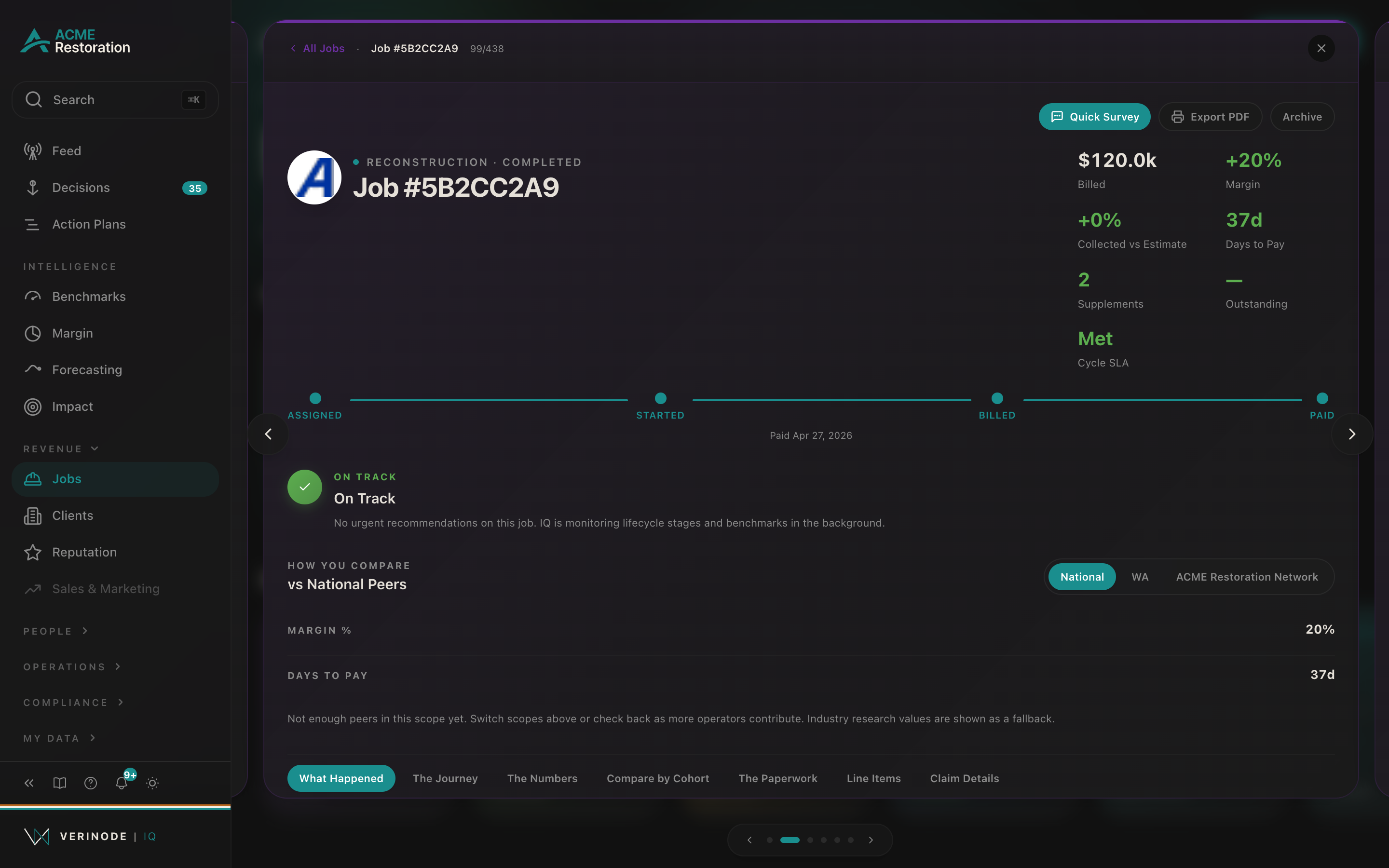
- An eyebrow line reads the job category and status, for example "Water · In progress."
- The title is the job's display name, with the client or carrier logo beside it and, when known, an "Insured · {name}" subtitle.
- A row of stat tiles, each a single number with a quiet comparison beneath it where one exists.
The stat tiles are the one-glance financial read on the claim:
- Billed, what you have invoiced on the job.
- Margin, your net margin percent on the job, after overhead. When your peer cohort has enough data, a tight delta sits under it, for example "+5pts vs peer" (or "vs industry" when only the research baseline is available). This is real profit margin, drawn from the burdened-cost estimate, not an estimate-realization ratio.
- Collected vs Estimate, what you collected measured against the original estimate. This is deliberately its own tile with no peer delta, because it is estimate realization, not profit.
- Days to Pay, how long the carrier took (or is taking) to pay, with a "vs peer" delta. Over 45 days reads as a concern.
- Supplements, the approval rate on this job's supplements when there are any, otherwise a plain count. Under 60 percent approval reads as a concern.
- Outstanding, the billed-minus-collected balance still owed, with a "{N}d aging" note when it is past due.
- A phase-appropriate SLA tile. Before work starts it shows the Onsite SLA (assignment to start); once work is underway it becomes the Cycle SLA (assignment to completion), reading "Day 6 / 14d," "Met," or "Missed" with the days left or days over target.
Under the stat tiles sits the lifecycle track, a labeled dot rail running Assigned → Started → Billed → Paid. The current stage is filled, and its color carries health, green when the job is moving on time, warmer when a stage is running long. A short caption underneath reads the current stage in plain language with its date.
The header's actions include a Job file button. One click downloads this job's complete record, the chronology from intake through carrier pushback with the correspondence and an exhibits index, as a single PDF you can hand to your counsel. See the job file export for what goes into it and the redacted-copy option.
The agent's read
Above the sections, IQ gives its read on the job. While it is still checking recent activity against benchmarks and playbooks, it shows "Reviewing Signals…". When it settles, it says one of two things:
- On Track, when there is no urgent recommendation. IQ keeps watching the lifecycle stages and benchmarks in the background.
- A recommendation, when there is a call worth making, with the headline, the reason, and where it helps a dollar impact. An Open decision button hands it to the decision workspace, where you plan and act. See the decision workspace for how that surface works.
Verinode surfaces the call and recommends how to act. Nothing is done on the job without your go-ahead.
The sections
Below the header, a row of pills jumps you between the profile's sections:
Job File · What Happened · The Numbers · The Crew · Compare by Cohort · The Paperwork · Line Items · Claim Details
This article covers the first two, the story of the job and the activity overview. The others have their own homes:
- The Numbers, the full revenue waterfall, burdened cost and margin, supplements, and the claim money check, is covered in the job's numbers.
- Line Items, the estimate line detail with peer pricing, is covered in job line items.
- The Crew holds who worked the job and the labor detail behind it.
- Compare by Cohort, this job set against peer cohorts, is covered in comparing jobs by cohort.
- The Paperwork lists the estimates, invoices, and photos extracted for this job. Its empty state reads "Drop an estimate, invoice, or photo and the agent will extract it here."
- Claim Details holds the editable facts: client, carrier, insured, claim number, the timeline dates, linked process SOPs, and additional details like adjuster and address. Many fields here are editable inline, correct one and Verinode learns the right value going forward.
Job File: the story of the claim
Job File is the first tab, the narrative of the job over time. The stitched timeline leads, The Story So Far follows, and the process view closes it out. On jobs that carry a drying log, a drying reconciliation sits between the story and the process view; on the rest it stays out of the way.
The stitched timeline
The tab opens with the claim's stitched journey, one chronological rail, oldest first. A composition line at the top reads what it is built from, for example "5 stages · 3 events · 8 documents," with a Show paperwork toggle when there are a lot of attachments so a fifty-document claim still reads as a story rather than a file list.
Each row on the rail is one of:
- A stage transition. The lifecycle now runs up to twelve stages, Loss, Received, Contacted, On site, Authorized, Assigned, Estimate submitted, Carrier approved, Started, Completed, Billed, Paid, with the familiar Assigned → Started → Completed → Billed → Paid spine still the backbone. The intake and estimating stages are optional: they appear when their dates are on file and are bridged when absent, so a job without them reads as the five-stage spine, never as a rail full of gaps. Every transition shows the elapsed time since the previous stage, for example "12d from Assigned," and where the money belongs to the moment (billed, collected, supplement amount) the figure sits on the stage itself.
- A supplement's sub-cycle, submitted to responded, folded in where it belongs in time. When the carrier pushed back, the response carries the pushback record beneath it: the denial reason, the dollars cut of what was submitted, the adjuster, the documentation demanded, negotiation rounds, reassignments, a "Paid on ACV" marker, an "Overturned on escalation" note when your escalation reversed the cut, and the contested lines themselves.
- A payment event, drawn from the job's stamped payment records, marked with a copper ring.
- A document, the estimates, invoices, and reports on the claim, with the sender and amount.
- A linked email, with a small party chip naming who sent it: Adjuster, Carrier, Customer, Sub, or You. An unmatched sender gets no chip, Verinode never guesses.
Where your peer cohort has data for a stage, the transition also carries the peers' timing beneath it, for example "Peers 6d (3–9d) · operators like you in CA · Observed," with a colored delta, red when you ran slower than peers, green when you beat them. The trailing word is the same confidence label used across every benchmark surface, Indicative, Observed, or Verified, telling you how deep the peer set behind the number is. This is where the profile starts to answer "was this normal, or slow?" The full timing-and-benchmark read, including where a job loses time and how its cycle compares to the standard, lives in a job's process and timeline, which renders further down this same tab.
Empty state. Before lifecycle dates and documents flow in, the timeline reads "As lifecycle dates, supplements, payments, and paperwork flow in from your inbox and tools, this job's full story maps itself here." When no emails are linked to the job yet, the rail offers the door instead of a silent gap: "No emails are linked to this job yet. Connect your inbox (Microsoft 365 or Google) and matching adjuster and subcontractor threads join this file automatically." And when peers are unlocked but the cohort has not formed yet, a line notes that peer timing appears beside each stage as more operators contribute the same lifecycle data, and that it is not about anything missing from your data.
The Story So Far
When calls and meetings about the job come in, Verinode keeps a running summary, the "brain of the job." It appears as a dated timeline of what was said across the job's calls, with a "From {N} calls" count. Beneath it, Follow-Ups From Calls tracks the commitments people made on those calls: who owns each one, when it is due, and a red Past due flag when it has slipped. Each open follow-up has a one-tap Mark done.
Empty state. Before any spoken-word data lands, this reads "As calls and meetings about this job come in, what was said shows up here as a running summary, with the follow-ups people promised tracked for you."
Note
Only what actually reaches Verinode is here. A follow-up you handled by phone with no note flowing in will not appear, so read this as a memory aid, not a scorecard of your team.
The process view
The Job File closes with the job's process view: the process linked to the job step by step, with what the job's own records say about each step, and beneath it the reference standard for the category and how your documented procedure scores against it. Nothing there asks you to grade the job. That surface has its own article, a job's process and timeline.
What Happened: the activity story
What Happened is the job's activity feed, newest and most relevant first. It stitches three kinds of entry into one timeline:
- Decisions IQ has raised on this job, tagged "Recommended," "Watching," or "For review," each with its reason, a monthly dollar figure where there is one, and an Open decision link.
- Signals the agent has detected, each with its own severity and, when it can be sized, an estimated dollar impact.
- Lifecycle milestones, the plain facts of the job moving: Job assigned, Work started on site, Invoice billed (with the billed amount), and Payment received (with the collected amount).
Empty state. Before the agent has anything to show, the section reads "Signals, decisions, and lifecycle milestones will appear here as your agent processes this job." That is not a broken screen, it means the documents and dates that feed the story have not flowed in yet.
Best-practice example
A carrier job reads Days to Pay 61d, five days over your peer cohort, and Outstanding $18k · 33d aging. Open the profile. What Happened shows the invoice billed a month ago and no payment event since. The Job File confirms it: the Billed stage is 33 days back with no Paid stage after it, and the billed-to-collected transition is running red against peers. Follow-Ups From Calls shows no follow-up logged. That is a claim where nobody is on record chasing the money, exactly the read the profile exists to give you, in one glance, so you can decide to make the call.
Data sources
Data sources
- 1.Your jobs, invoices, estimates, and claim documents. Your business.
- 2.Your call and meeting notes. Your business.
- 3.Anonymized peer cohort timing and benchmarks. Verinode network.